Open Geoviewer: Difference between revisions
Jump to navigation
Jump to search
Open Geoviewer
No edit summary |
|||
| Line 3: | Line 3: | ||
# Select the '''Open Geoviewer''' icon [[File:IconGSV.PNG]] in the toolbar. The cursor changes to an arrow. | # Select the '''Open Geoviewer''' icon [[File:IconGSV.PNG]] in the toolbar. The cursor changes to an arrow. | ||
#:The default geoviewer is Google Street View. | #:The default geoviewer is Google Street View. | ||
#:You can also choose another predefined geoviewer or add an own geoviewer in the '''[[OCAD_Preferences#Geoviewer_url|OCAD Preferences]]'''. | #:You can also choose another predefined geoviewer (e.g. Apple Look Around Viewer) or add an own geoviewer in the '''[[OCAD_Preferences#Geoviewer_url|OCAD Preferences]]'''. | ||
#:[[File:Hint.jpg|hint]] The toolbar icon is disabled if the map is not georeferenced. | #:[[File:Hint.jpg|hint]] The toolbar icon is disabled if the map is not georeferenced. | ||
# Click into the drawing area and drag a direction. <br>[[File:GoogleStreetViewDragDirection.png]] | # Click into the drawing area and drag a direction. <br>[[File:GoogleStreetViewDragDirection.png]] | ||
Revision as of 15:45, 2 December 2024
Open Geoviewer 


- Select the Open Geoviewer icon
 in the toolbar. The cursor changes to an arrow.
- The default geoviewer is Google Street View.
- You can also choose another predefined geoviewer (e.g. Apple Look Around Viewer) or add an own geoviewer in the OCAD Preferences.
 The toolbar icon is disabled if the map is not georeferenced.
- Click into the drawing area and drag a direction.
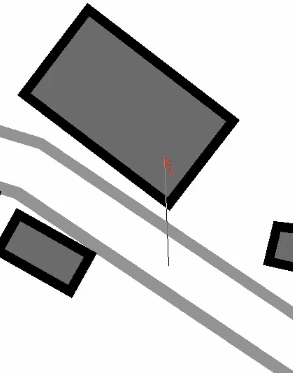
- OCAD opens the web browser with Google Street View at the chosen position and direction.


- Here you see the building, in which OCAD has its office.
- Here you see the building, in which OCAD has its office.
